
This feature lets you split a PDF into individual pages so you can share or reuse specific parts of a document.
When to use
- Extract a single page from a PDF
- Share only part of a document
- Prepare files for integrations like SiteOwl
Steps to use PDF Splitter
1. Open the PDF in your project
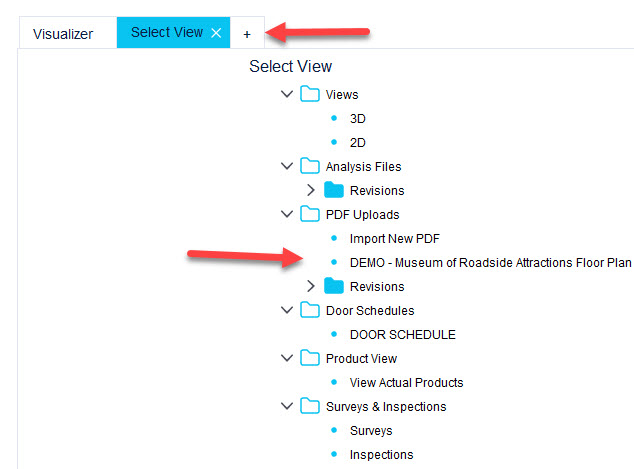
2. Hover over the Save icon
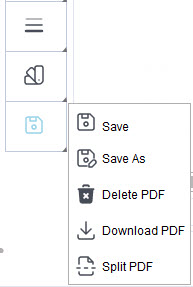
3. Select Split PDF
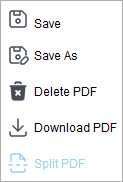
4. Choose a save location
Select where the split files will be stored.
5. Choose how to split the PDF
Select All pages to split the entire document.
Select Custom to choose specific pages or ranges.
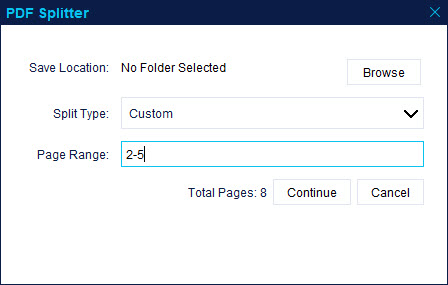
6. Click Continue
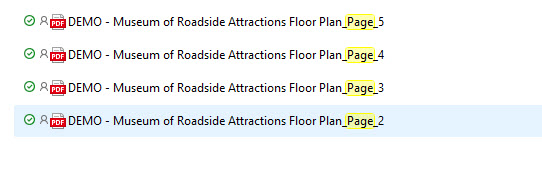
7. View the split files
Each page is saved as a separate file.
What happens next
- Each page is saved as an individual PDF file.
- Pins are retained in the split files.
- Files are saved locally to your selected location.
Important notes
Split files are not automatically uploaded back into the project. You must upload any pages you want to use.
Related tutorials