
Follow these steps to copy pins between two PDF documents.
-
In the Openings screen, navigate to the Visualizer area and click on the + and open the PDF you have already pinned.
If you make any changes to the document, be sure to click save before continuing to the next step.
-
Next, hover over the pin icon on the left toolbar and select Copy Pins.

- A window will appear asking you to select two documents.
-
First, select the document that has pins on it.
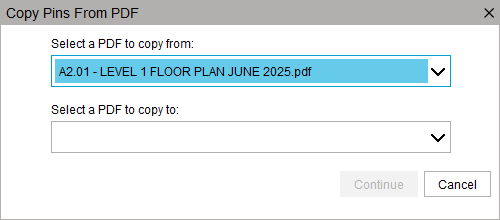
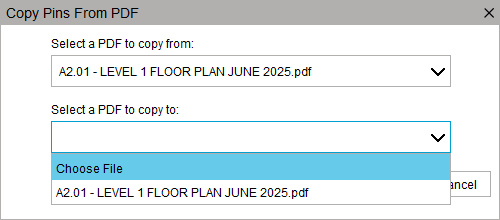
- Second, select the document that needs pins copied onto it.
-
You can use the Choose File option to browse for a document on your computer.
-
-
-
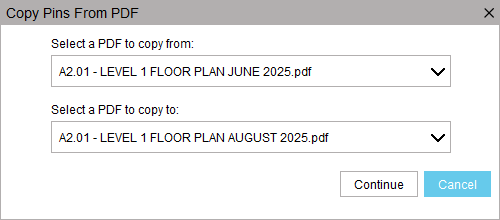
Click Continue once both documents are selected.
-
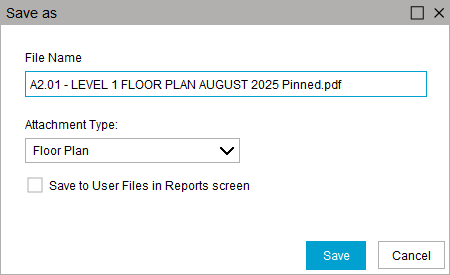
A window will appear for re-naming the second document if needed. Click Save to continue
-
You will be asked if you need to save the first PDF, just in case this was missed in Step 1.

-
After the save screen, the pins will start to copy. This process may take a few minutes to complete, based on the size of the PDF and the number of pins.
-
A Success message will appear once the pins have been copied.

-
You can click on the + in the Visualizer section to then open the second PDF that should now contain copied pins.

Related Links
PDF pin drop keyboard shortcuts