
Use the Key Schedule Excel import and export feature to update existing Key Schedule information in Microsoft Excel and import the changes back into Openings Studio. This process allows you to make multiple updates at once and apply them to the project.
Before you begin
- Confirm that you have the User Can Edit Key Schedule permission.
- Confirm that the products in the project contain the correct cylinder information.
- Coordinate with other project users so that the project does not change while you update the spreadsheet.
Important: Do not add rows, delete or modify the ID column, or make project changes while updating the spreadsheet. These actions can prevent Openings Studio from matching spreadsheet rows to the correct Key Schedule records.
Export the Key Schedule
- Open the project in Openings Studio.
- Open the Key Schedule tab.
-
Select the Export arrow.
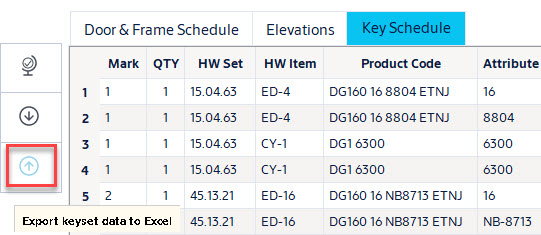
- Choose a location and save the exported Excel file.
Update the spreadsheet
- Open the exported file in Microsoft Excel.
-
Locate the columns highlighted in yellow.

- Enter the required information in the yellow columns.
- Leave all non-yellow columns unchanged.
-
Keep the ID column in the spreadsheet.
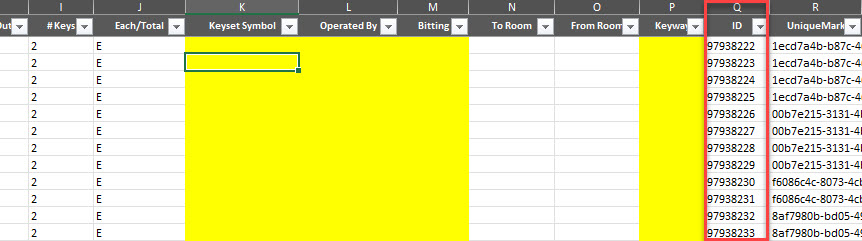
- Save the Excel file after completing your updates.
Note: The spreadsheet updates existing Key Schedule records only. Adding rows to the spreadsheet does not create new Key Schedule records.
Import the updated spreadsheet
- Return to the Key Schedule tab in Openings Studio.
-
Select the Import arrow.
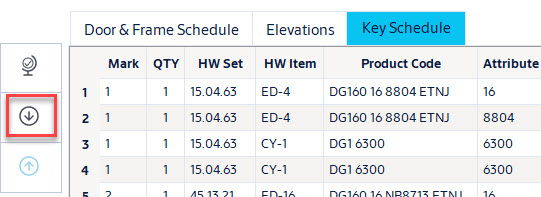
- Select the updated Excel file.
- Complete the import.
-
Review the Key Schedule and confirm that the updated values appear.
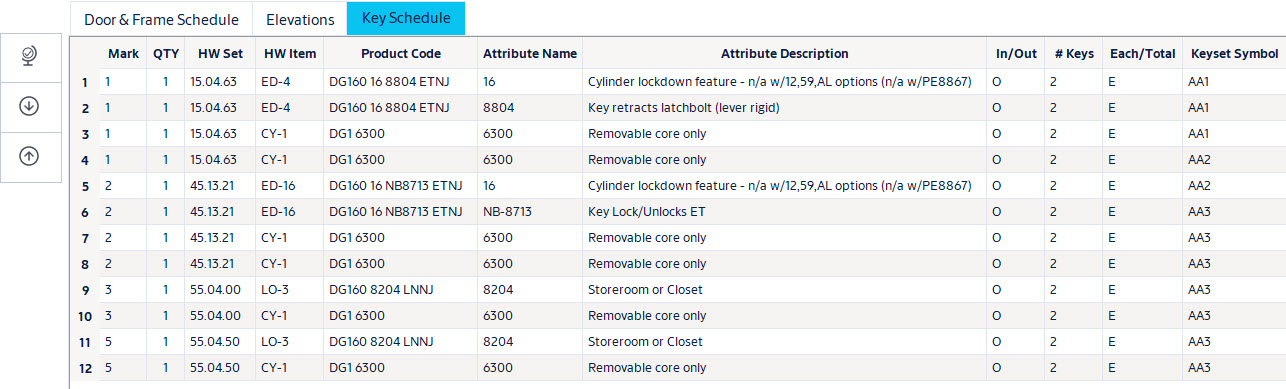
Result
The editable Key Schedule values from the spreadsheet are updated in Openings Studio.
Troubleshooting
The Key Schedule is empty or records are missing
The Key Schedule is populated based on the number of cylinders assigned to products in the project's price books or on the Custom Products tab.
The spreadsheet does not update the expected records
Export a new spreadsheet and repeat the update if:
- The ID column was deleted or modified.
- The project changed after the spreadsheet was exported.
- The spreadsheet was based on an older version of the project.
The Key Schedule displays outdated information
Exit and reopen the project to refresh the Key Schedule.