
This feature lets you reuse inspection and survey data from one project in another—saving time and ensuring consistency.
When to Use
- Creating demo projects with real inspection data.
- Sharing mobile app data with spec writers.
- Reusing site survey details for similar projects.
Step-by-Step Guide
1. Open a Project you want to copy mobile app data into.
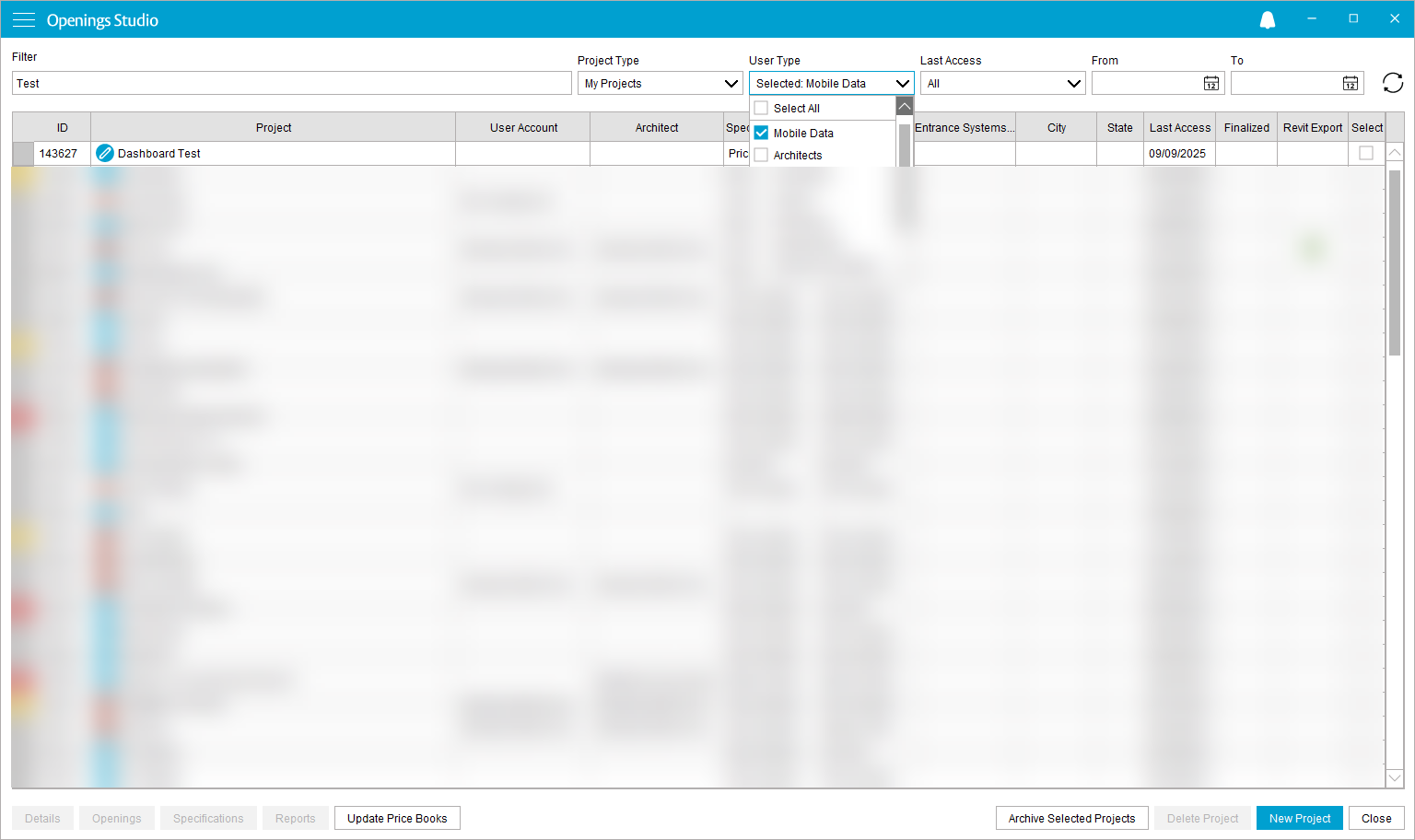
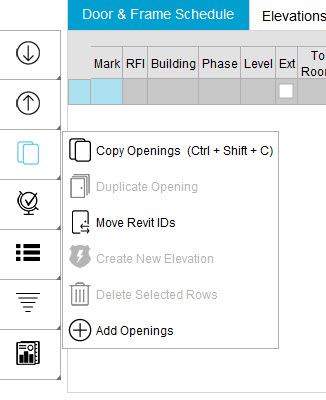
2. Access the Copy Feature.
- Navigate to Project Tools and select Copy Icon.
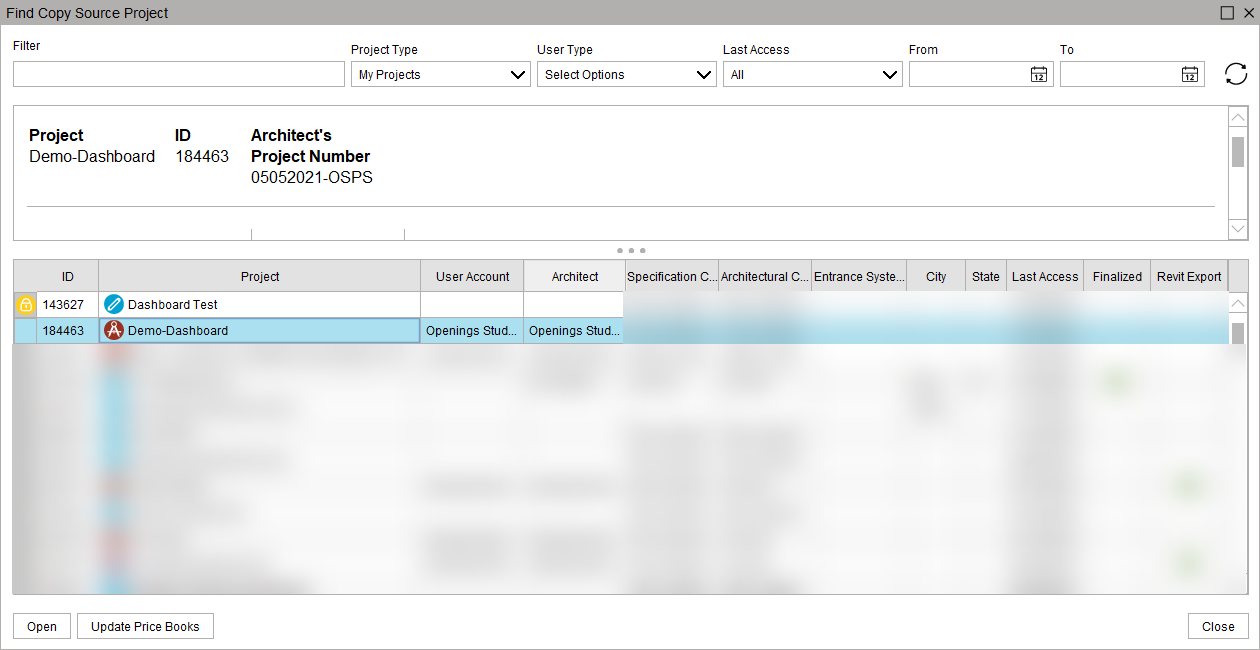
3: Choose the Source Project
- Select the project where you want to copy the data.
- Confirm your choice.
4: Review What’s Copied
- Included: Photos, inspection details, survey data.
- Not Included: Smart Tag IDs (GUIDs).
- Permissions: No special permissions required.
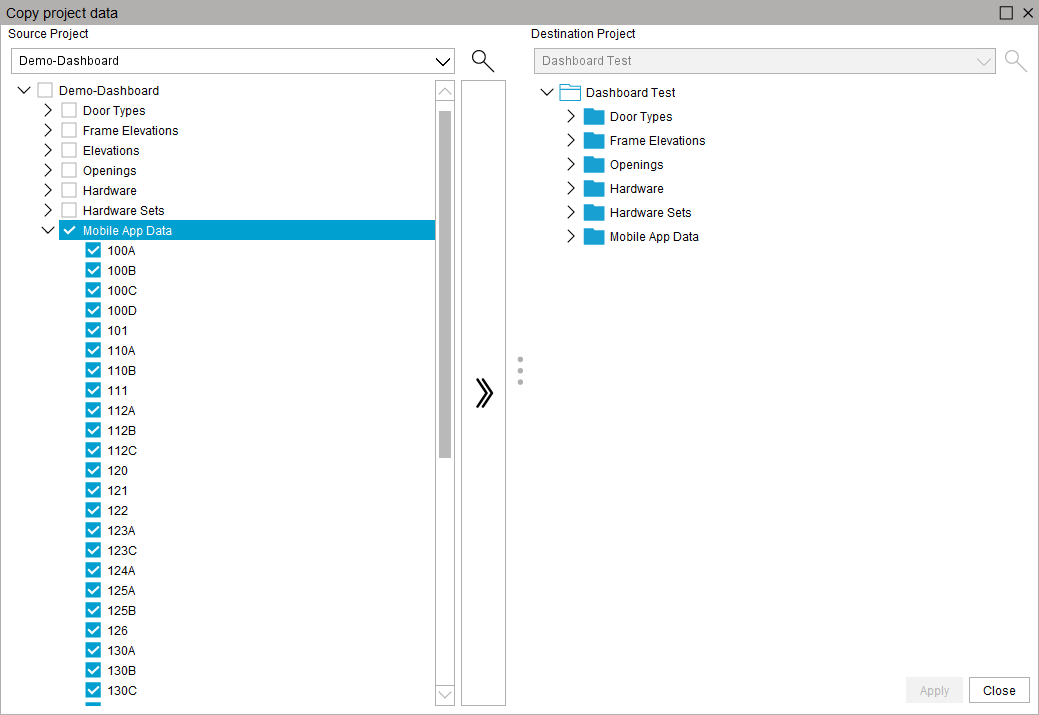
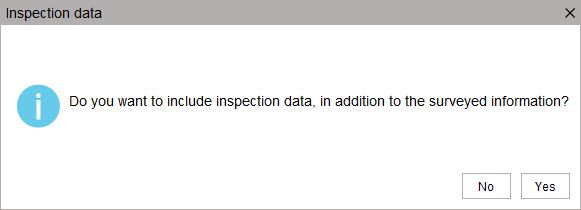
5: Choose to include Inspection data and images or just Survey.
6: Verify Data
- Open the destination project.
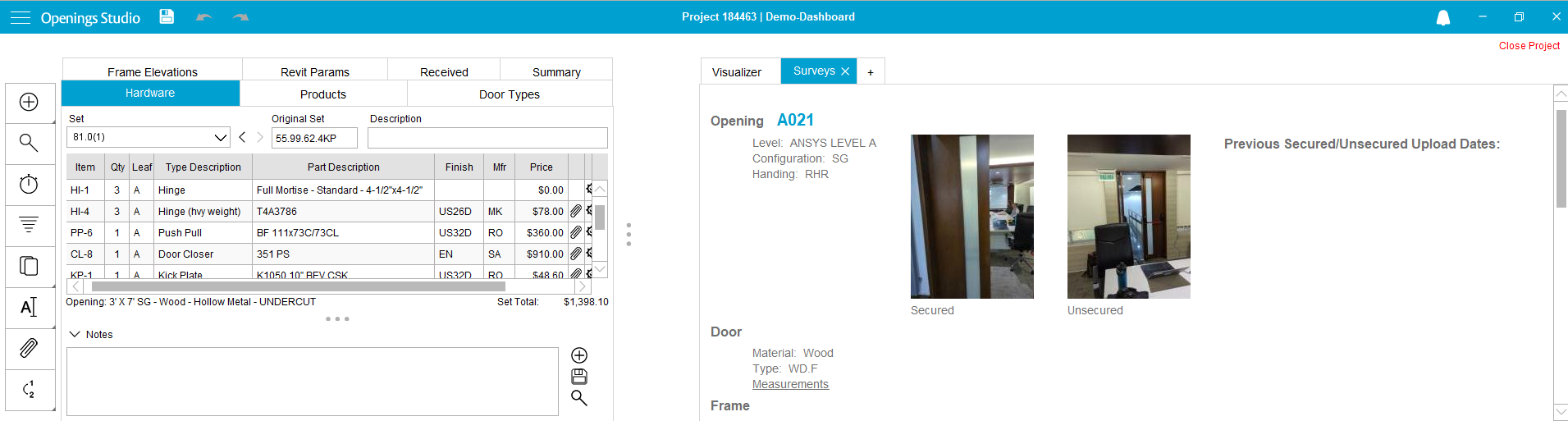
- Check that all mobile app data appears correctly.
⚠️ Important Notes
- Data is copied as a whole—individual inspections cannot be selected.
- Smart Tag IDs (GUIDs) are not copied.
Best Practices
- Use this feature for projects with similar specifications.
- Avoid copying unnecessary data to keep projects clean.
- Always verify copied data before sharing with clients.