
The Hardware Set Recommender within Openings Studio is a machine learning powered set recommendation tool. It takes door attributes commonly found on door schedules along with custom parameters deemed relevant to accurately recommend door access control hardware.
This powerful tool was built with you in mind. Together, our ASSA ABLOY specification writers used their expertise to train this model, capturing thousands of parameters to predict the right hardware set for each opening in a defined vertical market.
New columns have been added to help the Hardware Set Recommender. For review on how to set column visibility to show these columns and directions for custom view for Hardware Set Recommender. Currently we are using the following columns for the Hardware Set Recommender:
1. Access Control
2. Closer
3. EXT
4. Handing
5. Range
6. Room Ref
7. Smoke Rating
How to run the Hardware Set Recommender
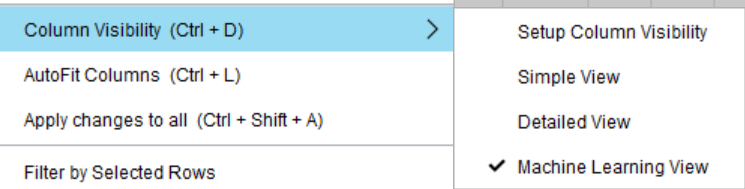
1. Confirm you have the column visibility set for Machine Learning Project.
2. Import your door schedule from the Import Template
3. Select and Filter typical Openings you can apply the same hardware set to. EG: "Unity Entry
4. Fill in the parameters required for the Hardware Set Recommender
- Smoke Rating
- Room Ref
- Access Control
- Closer
- Range
Helpful Tip
Any field left [blank] is considered as either "false" or "no". This means that you do not have to populate every field.
The section of the Range column is shown even if it is not available, eg 2800/70 is not available for Bathroom doors within the unit. Refer to the Machine Learning Cheat Sheet for the Range selection available.
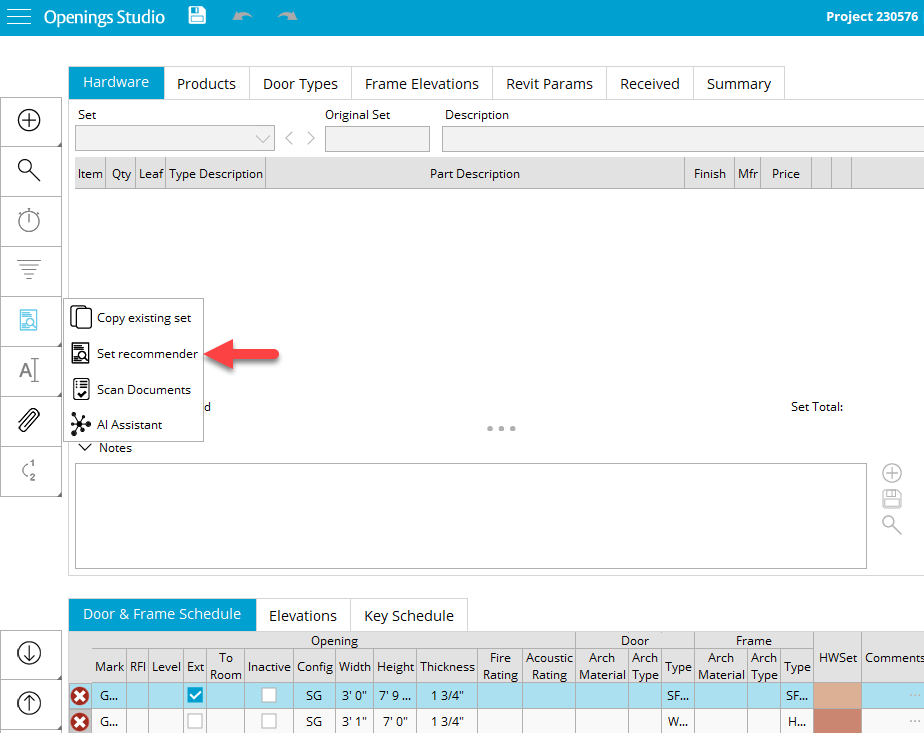
5. From the Hardware Tab toolbar select the Set Recommender icon.
6. Select Model as per the portion of the Unit Building
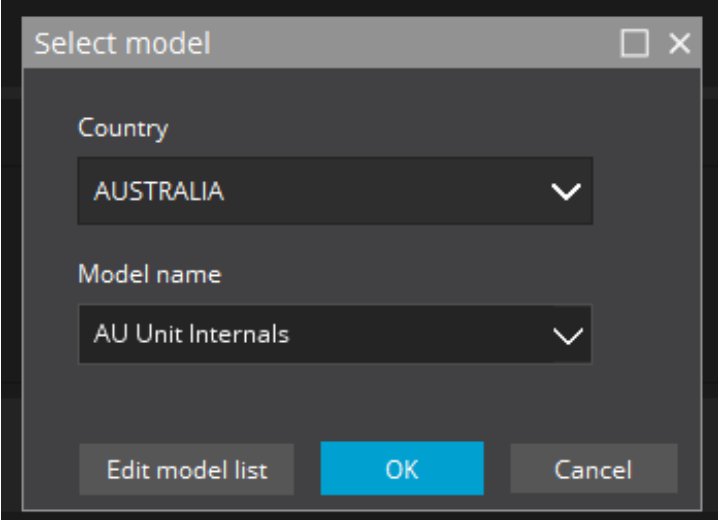
7. Click OK
Based on the model you selected as well as the information filled in the Door & Frame Schedule the Hardware Set Recommender will provide up to 3 hardware set recommendations as well as the % probability that the set matches the function required.
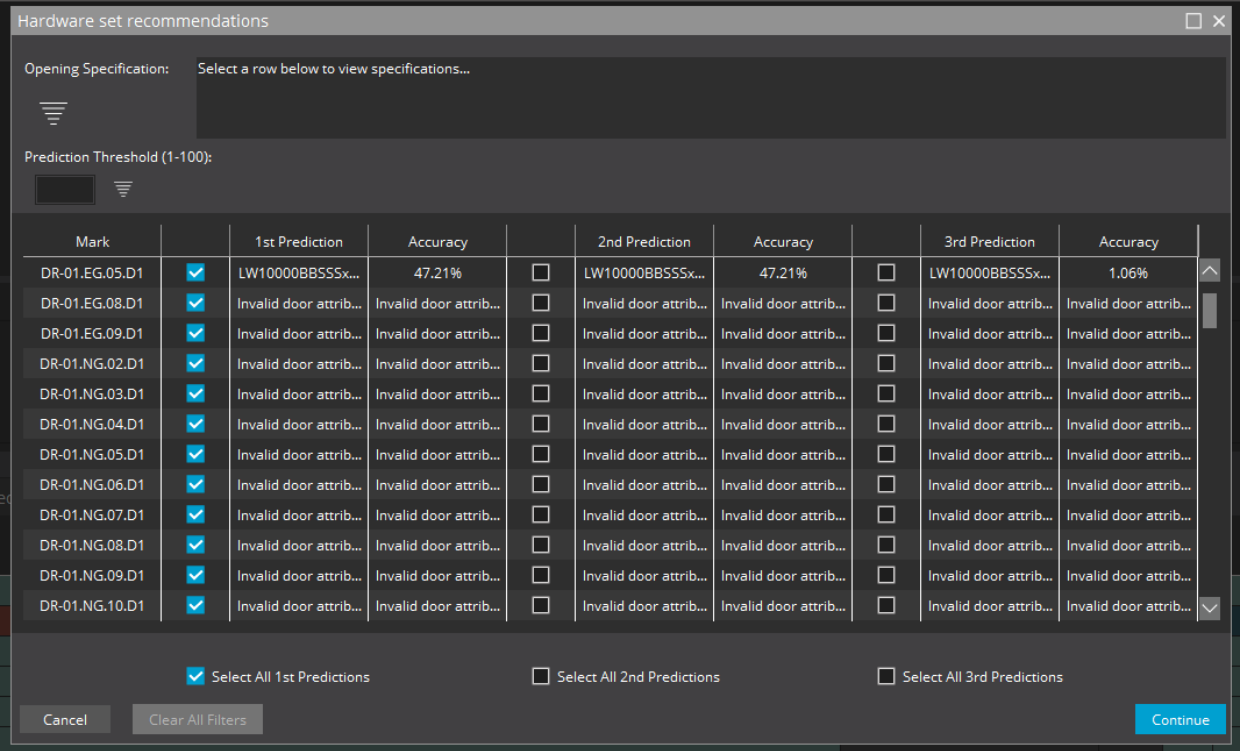
You may filter the Hardware Set recommendations by opening and/or by Prediction % Threshold.
8. After you select which Predictions to apply to your Door & Frame Schedule click continue.
-Note you can select all by the 1st, 2nd, or 3rd predictions or choose differently for each opening.
9. Next you can choose to Map the recommended set to a column in the Door & Frame Schedule like HWSet or export out the Door & Frame Schedule to excel with the predictions added to HWSet column for review
When ready to map the HWSet Prediction to a column in the Door & Frame Schedule choose Map and select what column to import or append to your desired column.

10. Navigate to the Details Page.
11. Click Run AU ML SP

Helpful Tip!
Only select button one time! There is no progress bar or indicator to show it is working, wait a minimum of one minute. Then select Save & Go to Openings.
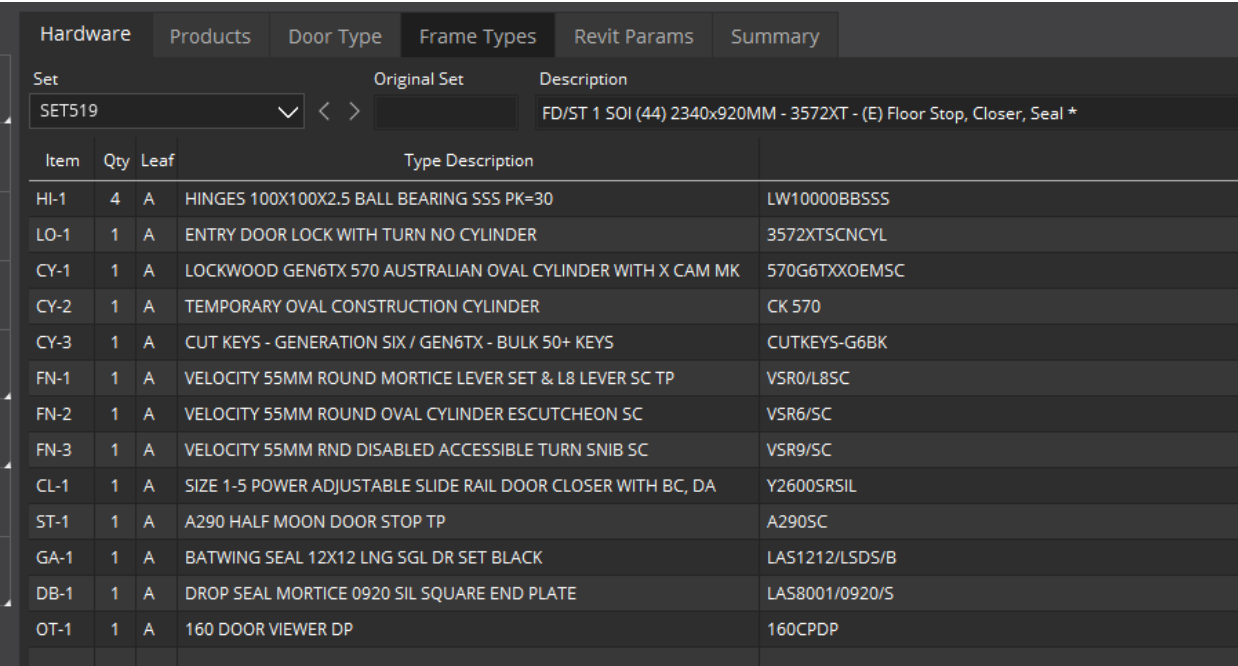
12. Review the Hardware Sets and renumber if desired.
Please be advised that the Hardware Set Recommender is currently a beta. Your feedback is invaluable as we work to refine and improve this feature. To provide feedback or learn more about further model testing reach out to your divisional manager.