

Polished to perform.
Openings Studio™ 3.28 delivers: cylinder support for Custom Products, restored Revit® right-click filtering, smarter save reminders, and a faster, smoother mobile experience. It delivers steadier performance across desktop, web, and mobile so teams can work more efficiently with fewer interruptions. This release is all about cleaner interactions, faster responses, and a more dependable experience from start to finish.
At a glance
- New: Export project search and lists to Excel (consultants only)
- Improved: Custom Products now support cylinders for better key schedule alignment
- Fixed/Improved: Autodesk® Revit® parameter right-click filtering works again (great for temporary filtering)
- Quality of life: Save reminders appear only on the active screen
- Mobile: Faster door checkout flow plus multiple stability and usability fixes (PDFs, pins, language display, inspections)
Thank you!
The Openings Studio Team
New & improved - Desktop application
Export Project List to Excel (Consultants only)
You can now create an Excel export from the Project List screen for a static list. This export respects your current filters.
Note: The export includes all columns available under column visibility, even if some are currently hidden on-screen.

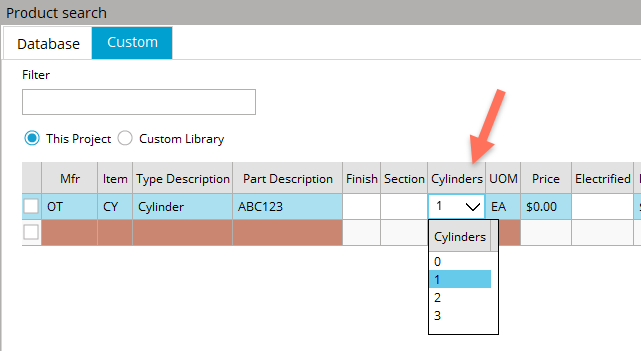
Cylinders on custom products (Key Schedule support)
Custom Products can now include cylinders, allowing cylinder information to appear in the Key Schedule.
Important notes for existing projects:
- Existing Custom Products that need cylinders must be updated and swapped.
- Key Schedule updates may require exiting and re-opening the project to reflect changes.
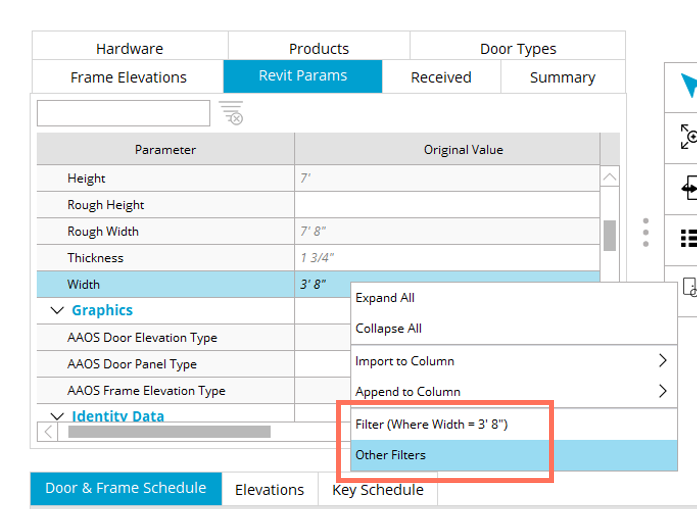
Revit Params: Right-click filtering works again
Right-click filtering in Revit Params has been fixed, restoring:
- Filtering the schedule by a selected parameter value
- Using “Other filters” to filter by available values
This is especially useful for temporary filtering in 3D projects when you don’t want (or need) to map a column.
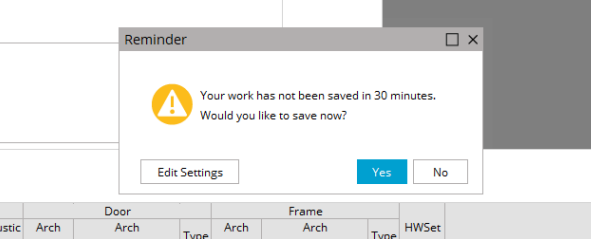
Save reminder appears on the active screen only
Save reminders now display only on the screen where Openings Studio is active, instead of appearing on another monitor.
New file picker/save window
The file picker and save experience has been modernized to a newer UI.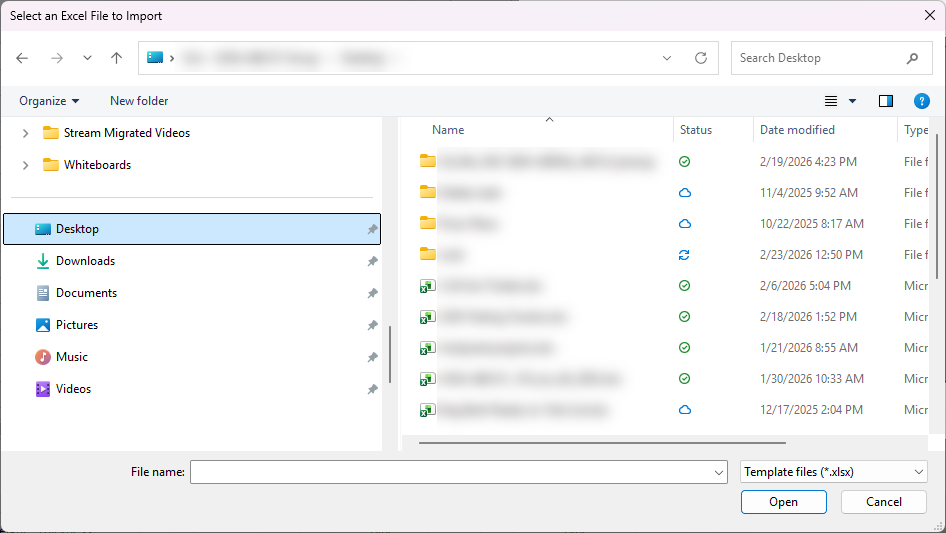
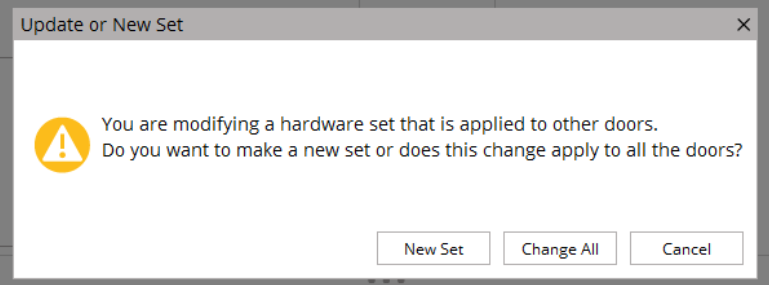
Warning when modifying sets applied to multiple doors (optional permission)
To help prevent unintended project-wide impacts, Openings Studio can now show a warning when a hardware set is applied to two or more doors and a user attempts to modify it.
This is controlled by a permission: User Is Prompted On Hardware Set Changes To Rename Set.
This feature is intended for non-specification writers and should be enabled intentionally rather than broadly.
Additional desktop fixes
The following issues were addressed as part of general improvements and the recent bug push:
- Dark theme tooltip adjustment for assigned openings
- Error when selecting New Door / Edit Door across all Revit years
- AU/NZ: Timber (wood) frames render with the correct color
- Analyze wizard plan view filtering clipping the navigation tree
- Reassigning users intermittently failing
- Products tab: Custom column visibility now holds consistently
- Project Search screen no longer grows slightly each time it opens
- Export Spreadsheet: Unequal pair door width display corrected
- Hardware set notes: Clicking into Note Group allows typing immediately
- Notification bell state is consistent between the main UI and the Reports pop-up
Mobile App updates
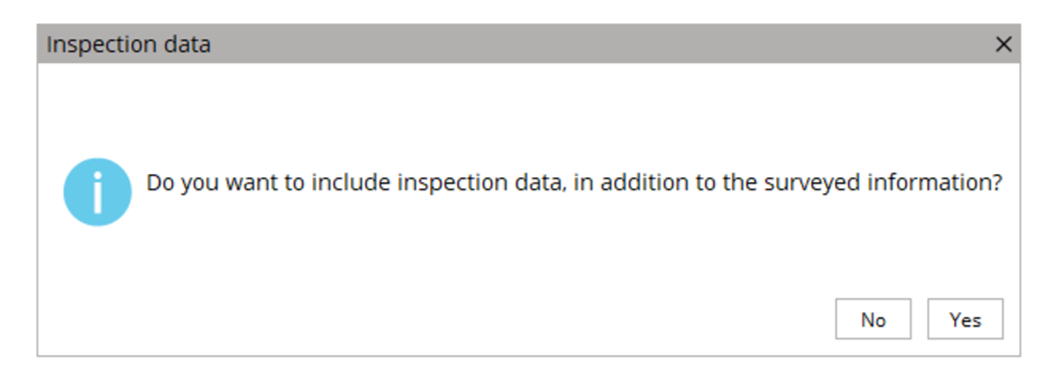
Copy only survey images (optional when copying project data)
When copying mobile app data between projects, you can now choose whether to copy inspection data in addition to survey data, supporting scenarios where inspection content is not needed.
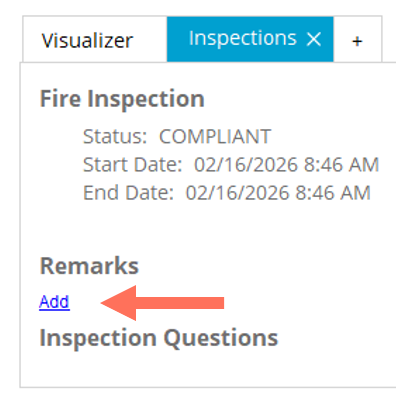
Create new Remarks in Client for mobile app projects (inspections)
You can now add new Remarks in the client for mobile app projects. Editing was previously supported, and this update adds creation as well.
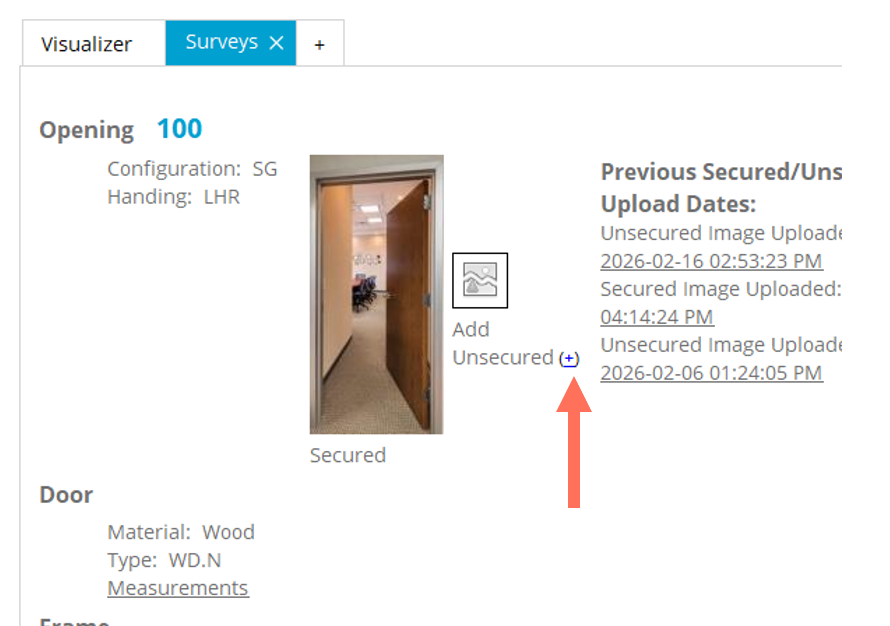
Upload secure and unsecure images in the client
The client now supports uploading secure and unsecure images directly, useful for quick demo cleanup or image fixes.
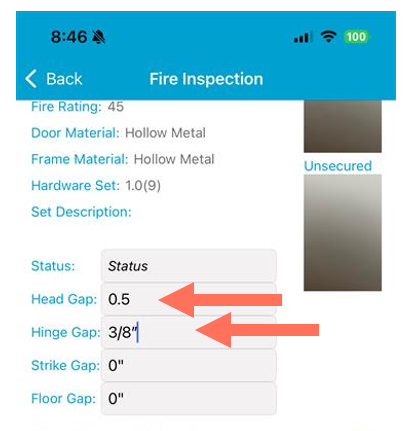
Imperial fractions: remove the ruler, type values directly
The ruler UI used for imperial fractions has been removed. You can type values directly (fraction or decimal), and the app will display formatted fractions when you return.
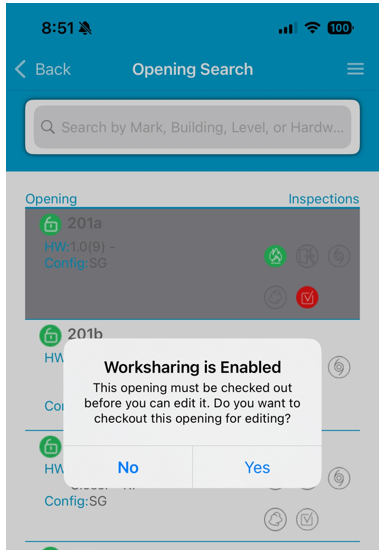
Worksharing: improved checkout flow (fewer taps)
Due to iOS swipe behavior changes, swipe checkout was previously removed. The mobile workflow has been improved so tapping an unchecked door prompts immediate checkout, reducing steps and improving in-field speed.
Multi-door checkout remains available.
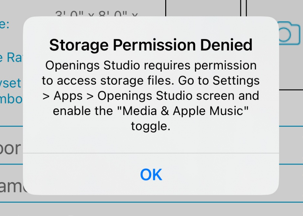
iOS improvement: clearer error steps when Storage Permission is denied (Plans/PDFs)
If storage permissions are denied, the error experience now includes clearer instructions for resolving the issue.
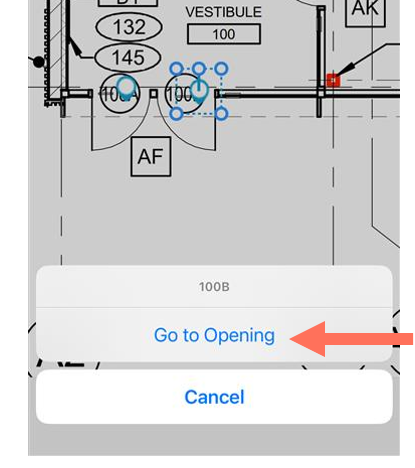
PDF improvements (mobile)
Several PDF usability issues were fixed, including:
- Toolbar disappearing or being pushed off-screen on iOS
- Go to Pin crashes and pin navigation reliability, including in worksharing contexts
Additional mobile fixes
- Images with .jpeg extension opening correctly in Visualizer
- Mobile app videos in reports loading inconsistently or timing out
- Worksharing toggle sync reliability improved for medium and larger projects
- Custom corrective actions now save in dropdown for reuse
- Installation inspection compliant status displays correctly in summary
- Electrified field holding after sync and electrified display correctness improvements